
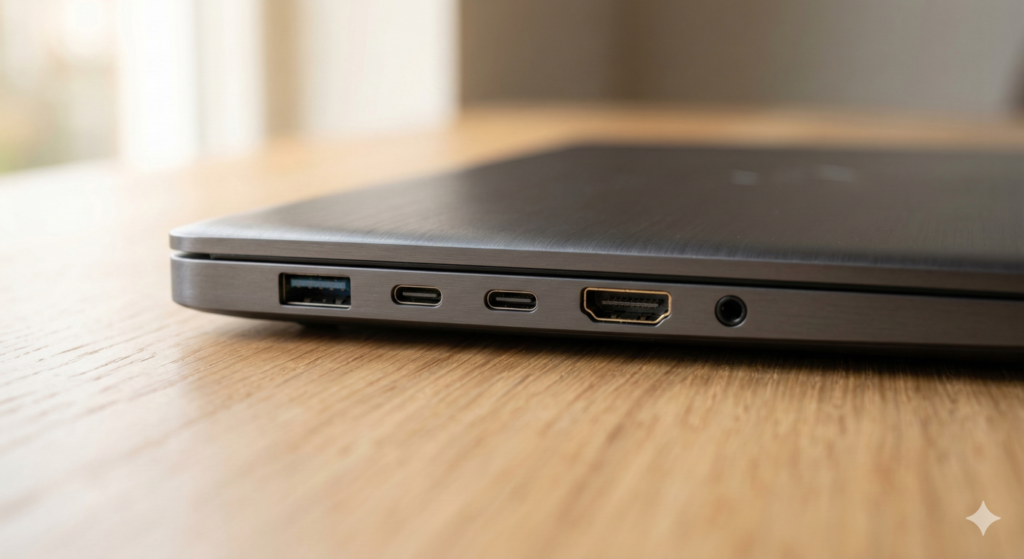
Laptop ports are the most practical specification on any machine, and in 2026 they have become one of the most contentious. A laptop ports guide used to be a simple reference — here is what each socket does. In 2026 it also needs to address a growing frustration among buyers: the ports they rely on daily are quietly disappearing from premium laptops while remaining standard on budget machines. Understanding what each port does, what the latest connectivity standards mean in practice, and which ports matter most for your specific use case will save both money and the daily irritation of carrying adapters everywhere.
This guide covers every port type found on current laptops — USB-A, USB-C, Thunderbolt 4 and 5, USB4, HDMI, DisplayPort, SD card, Ethernet, and 3.5mm audio — explaining what each does, what the specifications mean in real use, and what questions to ask before buying any specific machine.
Why Laptop Ports Matter More Than Most Buyers Acknowledge
The ports on a laptop determine what you can connect to it without carrying additional hardware. This sounds obvious, but its implications are frequently underestimated at the point of purchase and keenly felt in daily use.
A laptop with two USB-C ports and nothing else — increasingly common among premium ultrabooks — forces you to carry a hub or dock to connect a USB drive, an external display, and charge simultaneously. That hub adds cost, adds weight, adds a surface to place somewhere, and adds a cable to manage. The laptop that seemed elegantly minimal in a retail environment becomes a connectivity puzzle in a hotel room, a client’s office, or a conference room where the projector has an HDMI input and nothing else.
As PCWorld’s analysis of the premium laptop market notes, manufacturers appear to believe customers will pay more for fewer ports — but this logic fails in practice. A Dell professional laptop at over three thousand pounds omitting HDMI and USB-A forces the buyer to carry adapters that a budget machine at a fraction of the price includes as standard.
Pocket-lint’s investigation into port removal makes the case clearly: a laptop should have enough ports to serve as a workstation without requiring a hub or dock everywhere, which becomes a genuine problem for anyone who needs to work from a hotel, a coffee shop, or any location where setting up a full docking station is impractical.
The port selection on a laptop is a permanent decision. Unlike RAM on some machines, ports cannot be added after purchase. Checking the port layout carefully before buying is one of the most important and most skipped steps in the laptop purchasing process.
USB-A — The Legacy Standard That Is Not Going Away
USB-A is the rectangular port that has been the universal standard for peripheral connectivity for over two decades. Keyboards, mice, USB drives, charging cables for older devices, wireless receiver dongles for headsets and mice — the vast majority of accessories in daily use connect via USB-A.
The current USB-A standard in most laptops is USB 3.2 Gen 1 (5 Gbps) or USB 3.2 Gen 2 (10 Gbps). For transferring files from a USB drive, connecting peripherals, and charging accessories, either speed is more than adequate. The difference between Gen 1 and Gen 2 is only meaningful when transferring large files to and from a fast external drive — for everything else, you will not notice it.
The controversy around USB-A in 2026 is its removal from premium and thin-and-light laptops. As Pocket-lint’s piece on USB-A removal illustrates, the practical problem appears quickly: with only one USB-A port, using a wireless mouse dongle means unplugging it to read an SD card. One additional port would eliminate the problem entirely.
The honest advice for most UK buyers: a laptop with at least two USB-A ports handles the overwhelming majority of daily peripheral connections without adapters. One USB-A port is a compromise. Zero USB-A ports means carrying a hub permanently.
USB-C — The Universal Connector With a Confusing Identity Problem
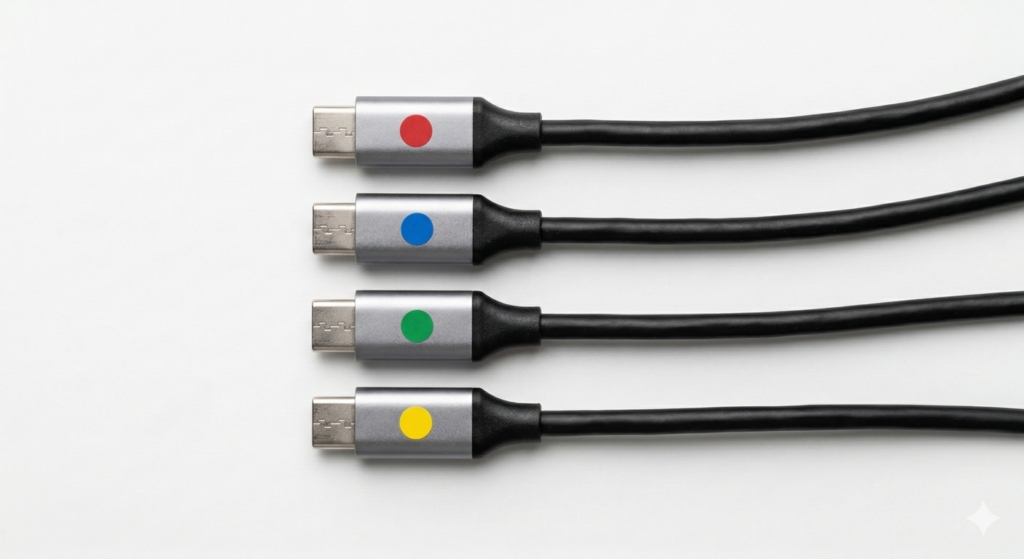
USB-C describes a physical connector shape — the small, oval, reversible port that has become the standard connection type on modern laptops, phones, tablets, and accessories. What it does not describe is the performance standard of what runs through that connector, and this is the source of considerable confusion among buyers.
A USB-C port on a laptop might be running any of several different protocols:
USB 2.0 over USB-C — found on some budget laptops, this delivers only 480 Mbps data transfer and basic charging. Functionally equivalent to the oldest USB standard despite the modern connector shape.
USB 3.2 Gen 1 or Gen 2 over USB-C — 5 Gbps or 10 Gbps data transfer respectively. Suitable for external drives, displays via adapter, and charging.
USB4 over USB-C — 40 Gbps data transfer, display output, and charging up to 240W in the latest version. The open-standard high-speed option.
Thunderbolt 4 or 5 over USB-C — the highest performance USB-C implementations, covered in detail below.
As Which? notes in its laptop connectivity analysis, the increasing disappearance of dedicated ports is directly linked to the proliferation of USB-C — the idea being that a single USB-C port should be able to replace HDMI, USB-A, and charging simultaneously through adapters. The problem is that not all USB-C ports support all of these functions, and identifying which USB-C port does what on a specific laptop requires reading the small print of the specifications carefully.
What to look for: When evaluating a laptop’s USB-C ports, check whether they support DisplayPort Alt Mode (required for connecting external displays without a dedicated display port), Power Delivery (required for charging via USB-C), and what data transfer speed they support. A laptop spec listing simply “USB-C” without these details is not providing enough information to evaluate the port’s usefulness. The USB Implementers Forum maintains the official USB specification documentation for buyers wanting the full technical picture.
EU USB-C mandate: Since December 2024, all laptops sold in the EU and UK market are required to include at least one USB-C port supporting USB Power Delivery charging, as confirmed by the European Commission’s Radio Equipment Directive. This regulation has accelerated USB-C adoption across all price tiers and means any current laptop sold in the UK will have at least one capable USB-C port.
Thunderbolt 4 — The Reliable Premium Standard
Thunderbolt 4 is Intel’s certified high-performance connectivity standard, using the USB-C connector but with strictly defined minimum capabilities that go well beyond basic USB-C. Every certified Thunderbolt 4 port guarantees 40 Gbps bidirectional bandwidth, support for dual 4K displays at 60Hz or one 8K display, PCIe data throughput at 32 Gbps, at least 100W charging capability, and wake-from-sleep functionality through connected docking stations, as detailed on Intel’s official Thunderbolt overview page.
The certification requirement is Thunderbolt 4’s key advantage over generic USB-C and even USB4. While USB4 specifies a minimum bandwidth of only 20 Gbps and does not guarantee dual-display support, every Thunderbolt 4 port from every manufacturer delivers the same guaranteed performance floor. The lightning bolt symbol on a port is a reliable quality signal.
Thunderbolt 4 remains entirely relevant in 2026 for the majority of professional users. A Thunderbolt 4 dock connects to a single port and provides a full desktop workstation experience — multiple displays, high-speed storage, Ethernet, USB hubs, and charging — through one cable. For remote workers and professionals who move between home and office environments, a Thunderbolt 4 dock transforms any desk into a complete workstation in seconds.
Thunderbolt 5 — The Next Generation Arrives in 2026

Thunderbolt 5 represents the most significant advancement in laptop connectivity since Thunderbolt 3 and is now appearing across premium laptops as the new high-performance standard. Understanding what it delivers — and whether it matters for your specific use case — is worth the detail. Intel’s official Thunderbolt 5 announcement and PCWorld’s Thunderbolt 5 deep dive both confirm the headline specifications in detail.
Thunderbolt 5 doubles the total bandwidth from 40 Gbps to 80 Gbps, and with a Bandwidth Boost feature can reach 120 Gbps in one direction when driving high-resolution displays — removing the real-world limitations of Thunderbolt 4 including the need for multiple adapters and enabling stable refresh rates for high-resolution creative and coding setups.
The display capability improvement is the most immediately practical difference for multi-monitor users. Whereas Thunderbolt 4 supports two 4K monitors at 60Hz each — often requiring a compromise between resolution and refresh rate — Thunderbolt 5 supports three 4K monitors at 144Hz each simultaneously, eliminating that trade-off entirely.
Power delivery increases substantially with Thunderbolt 5, supporting up to 240W compared to Thunderbolt 4’s 100W maximum. This means even the largest gaming laptops and high-performance workstations can now charge through a single Thunderbolt 5 cable rather than requiring a dedicated power brick alongside a data connection.
For external storage, the improvement is measurable. External NVMe SSDs connected via Thunderbolt 5 can reach approximately 5,000–6,000 MB/s transfer speeds, compared to a ceiling of around 2,800–3,000 MB/s on Thunderbolt 4. For video editors and photographers working directly from external storage, this removes a real bottleneck that affected practical workflow speed.
Who needs Thunderbolt 5: Creative professionals working with 8K video, large external storage arrays, or multi-monitor setups at high refresh rates will notice a genuine improvement. For most office users whose work consists of office applications, streaming, and light photo editing, Thunderbolt 4 remains more than capable and considerably more cost-effective — paying a premium for Thunderbolt 5 capability that a workflow never exercises is unnecessary expenditure.
Backward compatibility: Thunderbolt 5 ports work with all existing Thunderbolt 4, Thunderbolt 3, USB4, and USB-C devices, running each at the maximum speed the connected device supports. Existing docks, drives, and displays are not made obsolete by upgrading to a Thunderbolt 5 laptop.
USB4 — The Open Standard Alternative
USB4 is the open-standard high-performance connectivity standard built on the same technology base as Thunderbolt 3, available without Intel’s licensing requirements. It uses the USB-C connector and offers comparable capabilities to Thunderbolt at a lower implementation cost, which is why it appears on AMD-based laptops and mid-range machines where Thunderbolt licensing fees are not justified.
USB4 Version 2 delivers 40 Gbps bidirectional bandwidth, DisplayPort Alt Mode support, and Power Delivery up to 240W. The key difference from Thunderbolt 4 is the absence of guaranteed minimum specifications — a USB4 port’s actual capabilities vary by implementation. Always check what a specific laptop’s USB4 port supports rather than assuming Thunderbolt-equivalent performance.
Real-world performance differences between USB4 and Thunderbolt 5 become apparent with large file transfers — a 100GB video project that takes approximately 20 seconds with Thunderbolt 5 would require roughly 40 seconds with USB4 Version 2 under optimal conditions. For everyday transfers this gap is barely noticeable; for professional workflows involving regular large file movements, it becomes meaningful over the course of a working day.
HDMI — The Display Standard That Refuses to Die
HDMI remains the most universally supported display output standard in 2026. Conference room projectors, hotel TVs, external monitors across all price tiers, and home entertainment systems — the overwhelming majority of displays that a laptop user might connect to in real-world environments have HDMI inputs.
Current laptops typically include HDMI 2.0 (supporting 4K at 60Hz) or HDMI 2.1 (supporting 4K at 120Hz and 8K at 60Hz), as specified by the HDMI Forum’s official standards documentation. For connecting to a standard 4K monitor or TV, HDMI 2.0 is entirely adequate. HDMI 2.1 becomes relevant for gaming at high refresh rates on a 4K display or for future-proofing against 8K content.
The controversial trend of removing HDMI from premium laptops is one of the most practically damaging design decisions in the current market. A USB-C to HDMI adapter solves the problem in controlled environments but fails the practical test in the scenarios where HDMI matters most — connecting to a conference room projector, presenting from a hotel room, or plugging into a client’s display. Carrying an adapter for a connection type needed daily is a reasonable frustration, not an unreasonable expectation.
Mini HDMI and Micro HDMI appear on some thin laptops as space-saving alternatives to full-size HDMI. Both require specific adapter cables rather than the standard HDMI cables found everywhere, which defeats much of the convenience advantage of having a dedicated display port in the first place.
DisplayPort — The Professional Display Standard
DisplayPort is the professional display standard preferred by monitor manufacturers and common on higher-end external displays, particularly those targeting creative professionals and gamers. VESA’s official DisplayPort specification confirms that DisplayPort 1.4 supports 4K at 144Hz or 8K at 60Hz, while DisplayPort 2.1, incorporated into Thunderbolt 5, supports much higher resolutions and refresh rates.
Full-size DisplayPort ports are relatively rare on laptops — most implementations use Mini DisplayPort or route DisplayPort signal through USB-C or Thunderbolt ports via Alt Mode. For connecting to a high-refresh-rate gaming monitor or a professional colour-accurate display, confirming that the laptop’s USB-C or Thunderbolt port supports DisplayPort Alt Mode is important — not all do.
SD Card Reader — The Photographer’s Litmus Test
The SD card reader is one of the clearest indicators of whether a laptop’s design prioritised real-world usability or aesthetic thinness. Photographers and videographers who transfer images from camera memory cards need either a built-in SD card reader or an external reader that occupies a port whenever in use.
Two types of SD card reader appear in laptops: full-size SD and microSD. Full-size SD is universally compatible with standard camera cards. MicroSD requires either a microSD card (used in action cameras and drones but not standard DSLR or mirrorless cameras) or a microSD-to-full-SD adapter, which partially defeats the convenience purpose.
Premium laptops removing the SD card slot while photographers remain among their primary target customers is a specific frustration well documented in the current market. Budget laptops frequently include full-size SD card readers that their more expensive counterparts omit in pursuit of thinness. If regular photo or video work from camera cards is part of your workflow, confirming SD card reader presence and type is worth explicit attention before purchase.
Ethernet — The Connection Type That Never Disappoints
Ethernet provides a wired network connection that is faster, more stable, and more secure than Wi-Fi under any conditions. For anyone working from home or in an office environment where network reliability matters — video calls, large file transfers, cloud synchronisation — a wired Ethernet connection delivers noticeably better performance than wireless in most UK home broadband environments.
Most laptops that include Ethernet use a RJ-45 port supporting Gigabit Ethernet (1 Gbps). Some premium business laptops include 2.5 Gigabit Ethernet, which makes a meaningful difference for large file transfers on compatible networks.
Ethernet is one of the first ports removed from thin-and-light laptops to save chassis depth. USB-C to Ethernet adapters are inexpensive and reliable, making this a less critical port to have built in than HDMI — an adapter for Ethernet is a one-time purchase that lives permanently in a bag without the unpredictable frustration of needing an HDMI adapter at the wrong moment.
3.5mm Audio Jack — Still Essential in 2026
The 3.5mm headphone and microphone jack is the universal audio connection for wired headphones, earphones, and external microphones. Its presence on laptops is almost universal — even Apple, which controversially removed it from the iPhone, retains it on all MacBook models.
A small number of ultra-thin premium laptops have removed the 3.5mm jack in 2026 in pursuit of chassis thinness. This decision is even harder to justify than HDMI removal. As PCWorld’s analysis of premium laptop design decisions notes, even Apple refuses to remove the traditional audio jack from laptops despite removing it from iPhones — making its removal from Windows premium laptops an inexplicable decision that forces buyers to use Bluetooth audio or carry a USB-C audio adapter for a connection type that costs nothing to include.
What Ports Does a Laptop Need? — A Practical Minimum By Use Case
Everyday user — browsing, streaming, email, video calls: Minimum: 2x USB-A, 1x USB-C with charging support, 1x HDMI, 1x 3.5mm audio. This covers peripheral connections, display output for presentations, and audio without any adapters.
Remote worker and home office: Minimum: 2x USB-A, 2x USB-C (at least one Thunderbolt 4 for docking), 1x HDMI, 1x Ethernet or USB-C Ethernet adapter, 1x 3.5mm audio. A Thunderbolt 4 dock connected to a single port provides everything else.
Student: Minimum: 2x USB-A, 1x USB-C, 1x HDMI, 1x 3.5mm audio. Ethernet is useful for university networks. SD card reader valuable for any practical or creative coursework.
Photographer or videographer: Minimum: Full-size SD card reader, 2x USB-A, 2x USB-C (Thunderbolt 4 or 5 for fast external storage), 1x HDMI or DisplayPort, 1x 3.5mm audio.
Gamer: Minimum: 2x USB-A (mouse, headset, controller), 1x HDMI 2.1 or DisplayPort for external display, 1x USB-C, 1x 3.5mm audio. Ethernet strongly recommended for online gaming stability.
Business and professional: Minimum: 2x USB-A, 2x Thunderbolt 4 or 5, 1x HDMI, 1x Ethernet (built-in or adapter), 1x 3.5mm audio, SD card reader if handling any media.
The Dongle Life — When Adapters Are and Are Not Acceptable

Adapters and hubs are a practical solution to port limitations but deserve an honest assessment of when they are and are not a reasonable substitute for built-in ports.
Acceptable adapter scenarios: Ethernet is the clearest example — a USB-C to Ethernet adapter is inexpensive, reliable, universally compatible, and can live permanently in a bag without inconvenience. Similarly, a USB-C to USB-A adapter for occasional use is a reasonable one-time purchase.
Unacceptable adapter scenarios: Any connection type needed in unpredictable environments where you may not have your bag — HDMI being the primary example. Needing to present in a meeting room, connect to a hotel TV, or plug into a client’s display requires HDMI available immediately. An HDMI adapter you forgot to pack, or that is buried in your bag, fails the practical test.
The docking station solution: For buyers who work primarily from a fixed desk location, a Thunderbolt 4 or Thunderbolt 5 dock connected to a single laptop port provides a complete port selection — multiple displays, USB hubs, Ethernet, audio, and charging — through one cable. Wirecutter’s docking station guide and NotebookCheck’s dock reviews both provide regularly updated recommendations for UK buyers evaluating docking options. The laptop connects to the dock, the dock connects to everything else, and the desk becomes a fully equipped workstation. For mobile use, the same laptop needs either sufficient built-in ports or a compact travel hub.
Further Reading
Understanding how ports relate to the rest of a laptop’s capability is covered in detail across this site’s specs guides. Our Laptop Display Guide covers how Thunderbolt and DisplayPort Alt Mode affect external monitor performance and what display connections support the highest refresh rates. The Laptop CPU Guide explains how processor choice affects which connectivity standards a laptop supports — Thunderbolt 5 currently appears primarily on Intel-based machines. For complete recommendations with confirmed port layouts, our Laptop Buying Guide UK details port selection as a key evaluation criterion across every recommendation category, and our buying guides for best professional laptops and best mid-range laptops list full port specifications for every recommended machine.
The direction of travel in laptop connectivity is clear: USB-C and Thunderbolt are the future, USB-A is the legacy standard with years of practical life remaining, and the premium laptop market’s appetite for thinness is removing ports that buyers demonstrably need. Knowing exactly which ports your workflow requires — and confirming their presence before purchase rather than discovering their absence afterwards — is the most practically valuable outcome of this guide.
I bring years of experience in IT infrastructure and tech reviews for British buyers. Any affiliate links on this site do not shape our evaluations.
As an Amazon Associate, I earn from qualifying purchases.