

Laptop specs explained properly — that’s what this guide is for, because most spec sheets are written to impress rather than inform. They are dense with model numbers, acronyms, and marketing terms that mean very little to anyone who hasn’t spent years reading them — and even then, the numbers that matter most are frequently the ones buried at the bottom or omitted entirely. This laptop specs guide exists to change that.
This page covers every major laptop specification in plain English: what it measures, what it actually means for your day-to-day experience, what the numbers to look for are in 2026, and where the manufacturers are most likely to mislead you. It also covers something that very few buying guides are currently addressing: the global memory shortage that is reshaping laptop pricing and specification decisions right now, and what it means for UK buyers specifically.
Each section here links to a dedicated deep-dive guide for readers who want to go further. This page is the map; those pages are the territory.
For context on how all of these specifications fit into an actual buying decision — which machine for which use case, at which price point — the Laptop Buying Guide UK is the companion piece to this one.
The Market Story Nobody Is Telling You — Read This First
Before diving into specifications, there is a market context that every UK laptop buyer in 2026 needs to understand, because it is actively affecting the prices and specifications available on shelves right now.
The global memory market is in the middle of an unprecedented crisis. DRAM prices — the memory used in RAM modules — have risen over 170% year-on-year according to IDC analysis, and DDR5 spot prices quadrupled between September and December 2025 alone. NAND flash, the storage technology behind SSDs, is experiencing the same pressure. Kingston’s storage business manager confirmed a 246% increase in NAND wafer prices compared to Q1 2025. For context: NAND flash accounts for roughly 90% of an SSD’s manufacturing cost.
The cause is structural, not cyclical. AI data centres are consuming memory at a rate the industry was not built to accommodate. Manufacturers including Samsung, SK Hynix, and Micron have reallocated production capacity away from consumer DDR5 and NAND toward High-Bandwidth Memory used in AI accelerators, where the margins are higher and the customers are larger. Micron announced in late 2025 that it would exit the consumer memory market entirely and stop selling its Crucial-branded RAM and storage, to focus exclusively on AI and enterprise clients. SK Hynix has said the shortage is likely to persist until 2028. Major vendors including Lenovo, Dell, HP, Acer, and ASUS have warned of 15–20% price increases across the laptop market from the second half of 2026.
What this means practically for UK buyers: The laptops on shelves today that were manufactured or stocked before the pricing crisis represent better value than equivalent machines will in six to twelve months. Prices are going up, not down. If you are planning to buy a laptop in 2026, buying sooner rather than later is, for once, the correct advice — and it is coming from IDC, Tom’s Hardware, and Kingston’s own supply chain team, not from a retailer with an incentive to move stock.
It also means the standard advice about waiting for a spec upgrade or a price drop is less reliable than it has been for the past decade. The conditions that produced falling memory prices for years — oversupply, competition, commoditisation — have been inverted by the AI infrastructure buildout, and relief is not imminent.
The Processor — Generation Trumps Tier, Every Time
The processor, or CPU, is the central component that determines how quickly your laptop handles every task you ask of it. Understanding it properly requires getting past the tier naming that manufacturers rely on.
Intel and AMD both use tiered naming — Core i5, Core i7, Ryzen 5, Ryzen 7, and so on — that implies a consistent performance hierarchy. The problem is that the generation matters far more than the tier. A current Intel Core Ultra 5 from 2025 will outperform an Intel Core i7 from 2021 in almost every real-world task. The tier is a relative ranking within a generation; it says nothing about absolute performance across generations. This is one of the most persistent sources of misspent laptop budget in the UK market.
In 2026, the main CPU platforms for Windows laptops are Intel’s Core Ultra Series 2 (Lunar Lake) and Core Ultra Series 1 (Meteor Lake), and AMD’s Ryzen AI 300 series. For Apple, the M4 and M5 chips are the current generation. Intel’s Lunar Lake — used in machines like the Dell XPS 13 9350 and Samsung Galaxy Book5 Pro 360 — represents the current efficiency benchmark for thin-and-light Windows machines. AMD’s Ryzen AI 300 series, including the Ryzen 9 8845HS and Ryzen AI 7 350, is competitive for performance workloads and AI tasks.
There is also the TDP problem, which no spec sheet will flag clearly. TDP — Thermal Design Power — is the wattage the processor is permitted to sustain under load. The same chip configured at 15W in a thin ultrabook and 45W in a thicker machine will deliver meaningfully different performance in sustained tasks. Two laptops carrying “Core Ultra 7” on the box can perform differently because one chassis can handle more heat than the other. The only reliable way to know the real-world performance of a specific laptop model is to check benchmarks from independent sources — NotebookCheck and LaptopMedia test at the specific laptop level, not just the chip level.
The NPU — Neural Processing Unit — is the third processing component to understand in 2026. This is covered in its own section below. For a full breakdown of Intel vs AMD generations, what the Core Ultra naming scheme means, and how to identify current-generation chips in a retail listing, the Laptop CPU Guide covers everything in depth.
RAM — A Crisis in the Spec That Matters Most

RAM — Random Access Memory — is your laptop’s working memory. It holds everything the system is actively using: open applications, browser tabs, background processes, and the operating system itself. When you run out of RAM, the system starts using the SSD as overflow, which is dramatically slower and produces the stuttering and slowdowns that feel like an ageing laptop.
The minimum sensible RAM for a laptop purchased in 2026 is 16GB. Not 8GB. In earlier years, 8GB was a defensible choice for light users. In 2026, modern operating systems, browsers, and background services consume enough memory that 8GB is a constraint that becomes visible within a year of purchase. 16GB handles comfortable everyday multitasking — browser with multiple tabs, Teams or Zoom, a document or spreadsheet, music in the background — without any pressure. 32GB is appropriate for video editing, large datasets, running virtual machines, or gaming with streaming and Discord running simultaneously.
There is a critical caveat that most spec sheets do not flag prominently: on the majority of modern thin-and-light laptops, RAM is soldered directly to the motherboard. It cannot be upgraded after purchase. The decision made at point of sale is permanent. Buying 8GB thinking you can upgrade later is not a plan — it is buying an 8GB machine for life. Always confirm whether RAM is upgradeable before purchasing any laptop.
The memory type also matters more than it did. LPDDR5X — found in current-generation thin-and-light machines — offers higher bandwidth than LPDDR5 and DDR5, which translates to better performance in memory-intensive tasks and for integrated GPU workloads. The letter after the number is not marketing: LPDDR5X provides a measurable performance advantage over LPDDR5 in machines where the integrated GPU shares the same memory pool.
Given the current global memory shortage and the price trajectory described above, laptops that ship with 16GB or 32GB today represent better long-term value than they have at any point in the past five years. The cost of that RAM built into the purchase price is considerably lower than what equivalent standalone modules will cost in twelve months.
For a detailed breakdown of RAM types, how to identify soldered versus upgradeable configurations, and how much memory each type of user actually needs, the How Much RAM Do You Need? guide goes deeper.
Storage — Not All SSDs Are the Same
Storage holds everything permanently: the operating system, all applications, all files. The transition from spinning hard drives (HDDs) to solid-state drives (SSDs) transformed the laptop experience more than almost any other hardware shift of the past decade, and in 2026 any laptop still shipping with an HDD should be disqualified from consideration immediately.
Within SSDs, the architecture matters. NVMe SSDs — which use PCIe lanes rather than the older SATA interface — are dramatically faster for both sequential transfers and random access. A good NVMe SSD opens applications in a fraction of the time a SATA SSD takes, and the difference in boot times and general responsiveness is immediately perceptible. Most laptops at the mid-range and above now ship with NVMe SSDs, but budget machines occasionally use SATA SSDs or, in the cheapest configurations, eMMC storage — an embedded flash format that is considerably slower than either and should be avoided.
For capacity: 512GB is the practical minimum for most buyers in 2026. An operating system installation consumes 30–50GB. A modern AAA game can exceed 100GB alone. Regular software, documents, photos, and media files accumulate quickly. 1TB is the comfortable standard for most users and is increasingly common at mid-range prices. Buyers who work with video, photography, or large project files should target 1TB as a minimum and consider 2TB.
The NAND price crisis described in the opening section is particularly relevant here. SSD prices, after years of consistent decline that conditioned buyers to expect storage to become cheaper, are now rising. NAND wafer prices have increased by over 240% since early 2025. Consumer-grade SSDs are at the end of a supply chain that is being redirected toward AI data centres. For UK buyers, this means the 1TB SSD in a laptop purchased today at current retail prices is a component whose replacement or upgrade cost in 2026–2027 will be substantially higher.
The Display — Where You Spend Every Minute

The display is the component you interact with for every single second of use, and it is also the most commonly misrepresented in retail listings. Resolution and screen size are the two figures most prominently featured. Panel type, colour accuracy, and brightness — which determine whether the display is actually pleasant to use — are frequently buried or omitted.
Resolution establishes the pixel density and sharpness of everything on screen. Full HD (1920×1080) is the acceptable minimum and looks sharp on screens up to 14 inches. On 15 or 16-inch panels, 1080p begins to show its limits — the pixel density is lower and text is visibly less crisp than on a 2K or QHD panel. QHD (2560×1440 or similar) is the standard worth seeking for any 15-inch or larger display, and for buyers doing any creative or detailed work. 4K on a laptop is rarely practical — the pixel density gains at laptop viewing distances are marginal, and battery drain is significant.
Panel type is where the meaningful quality divide sits. IPS panels offer accurate colours and good viewing angles, making them the sensible choice for most buyers. OLED panels deliver genuine blacks, exceptional contrast, and vivid colour — they are visibly superior for content, creative work, and extended use, at a price premium and with some historical concerns about burn-in with static interface elements. TN panels, still found in the cheapest machines, offer poor viewing angles and washed-out colours and should be avoided entirely if alternatives exist at the budget.
Colour coverage is the specification that separates genuinely good displays from merely adequate ones, and it is almost never featured prominently in retail listings. A panel covering 100% sRGB looks markedly better in everyday use than one covering 45–60% sRGB. The latter produces visibly muted, flat colours. This matters not just for photo editing but for everything you look at all day. A display upgrade from poor sRGB coverage to full coverage produces a more noticeable daily improvement than going from 1080p to 1440p on the same mediocre panel.
Brightness is measured in nits. Anything below 250 nits washes out near windows or in natural light. 300–400 nits handles most UK office and home environments. 500 nits and above is comfortable for outdoor use. HDR-capable panels typically require 1000 nits for meaningful HDR performance.
Refresh rate matters specifically for gaming and fast-moving content. 60Hz is standard for productivity. 120Hz makes general scrolling and UI interactions noticeably smoother. 144Hz and above is the target for gaming. For competitive gaming, 165Hz, 240Hz and higher are increasingly common in dedicated gaming machines.
For a full breakdown of every panel type, how to read a display spec sheet, and what to look for in HDR, PWM, and response time specifications, the Laptop Display Guide covers all of it.
The GPU — Only Pay for What You Will Actually Use
The GPU — Graphics Processing Unit — handles visual rendering, from the desktop interface to video playback to gaming and 3D work. Understanding when you need a dedicated GPU and when you don’t is one of the most useful ways to avoid paying for hardware that will never be used.
Integrated graphics — built directly into the CPU — are entirely sufficient for the majority of UK laptop buyers. Modern integrated GPUs, including Intel Arc integrated graphics, AMD’s RDNA iGPUs found in Ryzen AI chips, and Apple Silicon’s GPU cores, handle 4K video streaming, photo editing, video calls, web browsing, and light creative work without difficulty. If your work does not include gaming, 3D modelling, video production, or machine learning, integrated graphics are the right choice — and choosing a machine with a dedicated GPU when you don’t need one means paying more, accepting worse battery life, and running a hotter, noisier machine.
Dedicated GPUs become genuinely necessary when gaming or GPU-accelerated professional work is involved. For gaming, the RTX 4050 handles 1080p comfortably. The RTX 4060 steps up to 1440p gaming. The RTX 5-series — Nvidia’s current Blackwell generation — introduces significant architectural improvements including Multi-Frame Generation and DLSS 4, which are exclusive to the 50-series and provide meaningful practical benefits in supported games.
The most important GPU specification that most retail listings obscure is TGP — Total Graphics Power. This is the wattage the GPU is permitted to consume in a given laptop chassis. The same RTX 4050 can run at 45W in one machine and 105W in another. The performance difference is substantial — LaptopMedia‘s testing found a 45W RTX 4050 performing only marginally better than a 95W RTX 3050. Always check the TGP for any gaming laptop before purchasing; if a retailer does not publish it, find a review from NotebookCheck or LaptopMedia that does.
VRAM — the GPU’s dedicated memory — is increasingly relevant in 2026. The RTX 5070 carries 8GB of GDDR7. Multiple reviewers have documented VRAM pressure in demanding titles at maximum settings. The RTX 5070 Ti steps up to 12GB GDDR7, which provides meaningful headroom over a typical three-year ownership cycle. Like system RAM, GDDR memory prices are rising with the global shortage — the 8GB ceiling on certain cards is a specification that will feel more constraining as games grow, not less.
The NPU — The New Spec You Actually Need to Understand
The NPU — Neural Processing Unit — is the newest significant component in consumer laptops, and it has become impossible to ignore in 2026. Every major laptop manufacturer is marketing AI credentials, Copilot+ certification, and TOPS figures. Here is what any of that actually means.
An NPU is a dedicated chip designed to run AI inference tasks efficiently — faster than a CPU, and far more power-efficiently than a GPU for the specific class of calculations involved. Tasks like real-time background removal in video calls, live captions, noise cancellation, image upscaling, and AI assistant responses are the kinds of workloads an NPU handles without significantly impacting battery life or CPU performance.
TOPS — Trillion Operations Per Second — is the measure of NPU capability. Microsoft’s Copilot+ PC certification requires a minimum of 40 TOPS. Current chips from Intel (Core Ultra Series 2), AMD (Ryzen AI 300), and Qualcomm (Snapdragon X Elite) deliver between 45 and 80 TOPS in 2026 configurations. The 40 TOPS threshold is the meaningful line: below it, certain Windows AI features are simply unavailable or run poorly; above it, they work as intended.
The honest question for most UK buyers is whether NPU capability is worth paying a premium for. The answer in 2026 is conditional. The features that use the NPU most effectively — Windows Studio Effects for video calls, Live Captions with real-time translation, AI-enhanced image editing in supported applications — are genuinely useful for anyone on frequent video calls or working with media. If you regularly attend Teams calls, the background blur and voice clarity improvements on a Copilot+ machine versus a non-NPU machine are perceptible. If you primarily use a browser and the NPU’s main role would be running cloud-based AI tools that don’t use it at all, the premium is less justified.
Microsoft has also been shifting its AI processing strategy between GPU, CPU, and NPU in ways that make long-term predictions about which chip matters most genuinely uncertain. The practical advice: if a machine already meets your requirements and carries a Copilot+ certification at no significant premium, that is a welcome bonus. Do not pay heavily for NPU credentials alone if the rest of the specification doesn’t suit your needs.
Ports and Connectivity — The Bits You Notice Every Day
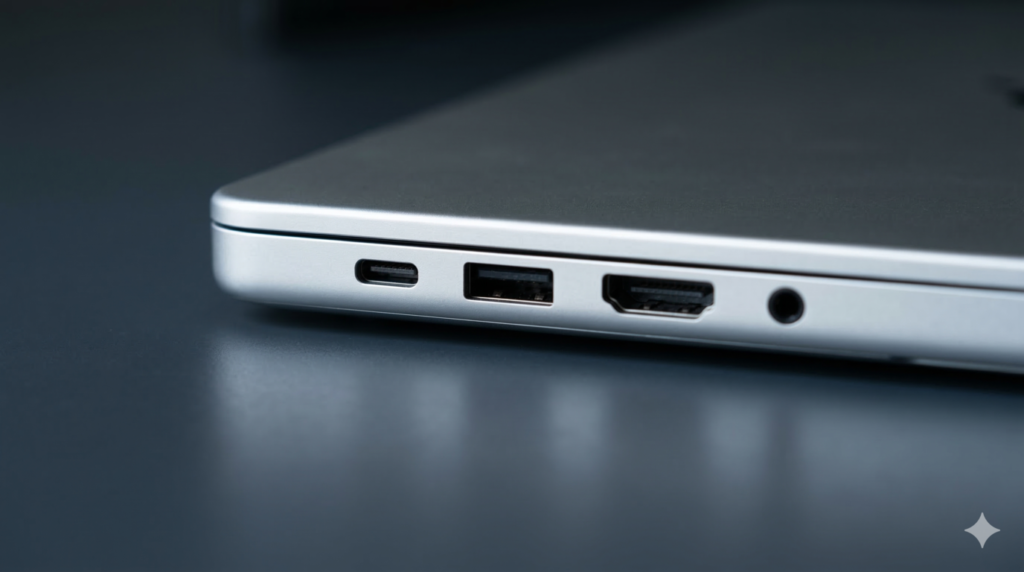
Connectivity is the specification area most commonly regretted after purchase, precisely because it has no headline number and doesn’t feature prominently in retail listings. Opening the box and discovering you have two USB-C ports and nothing else — on a machine that needs to connect to a projector, a wired network, a USB-A peripheral, and a monitor simultaneously — is an avoidable frustration.
USB-C and Thunderbolt are the dominant connection standards in 2026. Thunderbolt 4 supports data transfer at up to 40Gbps, video output, and charging over the same port — it is more capable than a standard USB-C port even if the physical connector looks identical. Thunderbolt 5, found on a small number of current machines including the MSI Vector 16 HX AI, doubles the bandwidth to 80Gbps and provides meaningfully more headroom for high-resolution external displays and fast docks. Standard USB-C ports run at significantly lower speeds — check whether the port is Thunderbolt or USB-C before assuming capability.
USB-A is the rectangular legacy port that most peripherals, USB drives, and accessories use. Many thin ultrabooks have eliminated USB-A entirely in favour of USB-C. If you regularly connect USB-A devices — a mouse, a drive, a camera — and your laptop has no USB-A ports, a hub or adapter is an ongoing requirement. Factor this in before buying.
HDMI version matters more than the presence of HDMI alone. HDMI 2.0 supports 4K at 60Hz. HDMI 2.1 supports 4K at 120Hz and 8K at 60Hz, and is the standard for current-generation gaming laptops. A gaming laptop with HDMI 2.0 cannot drive a 4K 120Hz monitor over that port regardless of how powerful the GPU is.
Wi-Fi generation has meaningful real-world impact. Wi-Fi 6 is the common standard. Wi-Fi 6E adds the 6GHz band, providing less congestion in environments with many devices. Wi-Fi 7, found in a growing number of 2025–2026 machines, delivers higher throughput and lower latency — useful in homes with multiple streaming and gaming devices competing for bandwidth.
For a detailed explanation of every port type, what each connector is actually for, and how to assess whether a given laptop’s connectivity suits your setup, the Laptop Ports and Connectivity Guide covers everything.
Battery Life — How to Read Past the Marketing
Battery life claims from manufacturers are optimistic by design. Figures of 18 or 20 hours typically reflect looped video playback at low brightness with Wi-Fi disabled — not the reality of running a browser, Teams calls, and background applications simultaneously.
Real-world battery life under active professional use is typically 50–70% of the manufacturer’s claimed figure. A machine claiming 18 hours will realistically deliver 9–12 hours of productive work on a mixed workload. Always cross-reference with independent reviews that test under real conditions — RTINGS and NotebookCheck use consistent methodologies that produce comparable results across machines.
The battery size — measured in watt-hours (Wh) — is a useful proxy. A 70Wh+ cell is a good starting point for genuine all-day use on a productivity machine. Gaming laptops with 90–99Wh cells can still produce poor battery life when the GPU is active, because the GPU’s power draw overwhelms the cell capacity. A 100W GPU running for two hours empties a 99Wh battery entirely, which is why gaming laptops are characterised by poor battery life regardless of cell size.
USB-C charging — on machines that support it — is a practical advantage that deserves more attention than it gets. Being able to charge from a phone charger, a power bank, or a hotel room’s USB-C socket removes the dependency on a proprietary power brick. For travellers and commuters, this is a genuine quality-of-life improvement that doesn’t show up in any headline specification.
Build Quality — What the Spec Sheet Cannot Tell You
No specification captures build quality, and yet build quality determines how much you enjoy using the machine every day and how long it survives regular use.
Chassis material is the most reliable indicator. Aluminium and magnesium alloy chassis flex less under pressure, feel more substantial, and tend to handle the minor impacts of daily transport better than plastic alternatives. Some engineered plastics are genuinely robust — Lenovo’s ThinkPad line uses a carbon-fibre reinforced plastic that is more durable than many aluminium alternatives — but the general rule holds: metal chassis outlast and outfeel plastic ones.
MIL-STD-810H certification indicates the chassis has passed a set of US military durability tests covering shock, vibration, altitude, humidity, temperature extremes, and sand. It doesn’t mean the laptop is indestructible, but it does mean it has been tested to a defined standard. Several machines in both the budget and premium tiers carry this certification — the LG gram 15Z80T and ASUS TUF A16 among them — and it is a meaningful differentiator for buyers who carry their machine regularly.
Keyboard quality is the most subjective but arguably the most impactful daily experience factor. Key travel — the distance a key depresses when pressed — and tactile feedback vary significantly between machines. Some thin ultrabooks sacrifice key travel to achieve their slim profile to the point where extended typing becomes uncomfortable. If you write frequently, test the keyboard before committing, or seek out reviews that specifically comment on typing experience.
Hinge quality determines whether the laptop feels well-assembled over time. A stiff, precise hinge that stays at the angle you set it is a mark of quality manufacturing. Hinges that wobble, creak, or require two hands to open are a frustration that compounds over years of daily use.
Performance Benchmarks — How to Use Them Without Getting Lost
Performance benchmarks are the most reliable way to compare laptops across different CPU and GPU configurations, but they require some context to use correctly.
Geekbench is one of the most widely cited benchmarks. Its single-core score reflects the performance of individual tasks — application launches, responsive UI, general snappiness. Its multi-core score reflects sustained performance across all cores simultaneously — relevant for video export, compilation, and any workload that parallelises well. For everyday productivity, single-core performance is the more relevant figure. For creative or development workloads, multi-core matters more.
Cinebench R23 and R24 are CPU-specific benchmarks that stress all cores over a sustained period. They are particularly useful for revealing TDP throttling — a machine that scores well in a brief burst but drops significantly over a sustained run is a machine whose cooling cannot sustain its peak performance. This is the exact scenario where a thin ultrabook differs most from a thicker machine using the same chip.
3DMark benchmarks GPU performance in a standardised environment, providing a comparable score across different GPU models and TGP configurations. A 3DMark TimeSpy score for a specific laptop model tells you far more about actual gaming capability than the GPU model name alone.
The important habit to develop is checking benchmark scores for the specific laptop model — not just the chip — because TDP configuration, cooling quality, and chassis design all affect how the components perform in practice. The same Ryzen 9 in a thin chassis and a gaming chassis will produce different sustained benchmark results.
For a guide to reading and comparing benchmarks, understanding what each test measures, and how to use benchmark data to compare machines you are considering, the Performance Benchmarks Explained guide goes into full detail.
The Spec Traps — A Summary of What Manufacturers Count On You Not Knowing

Before closing, it is worth naming the most common specification misrepresentations explicitly.
Same chip, different performance. Two laptops carrying “Core Ultra 7” or “Ryzen 7” can perform very differently depending on how the manufacturer has configured the TDP. Always check benchmarks for the specific model.
GPU wattage omissions. A gaming laptop listing an RTX 4060 or RTX 5070 without mentioning TGP is technically accurate and practically misleading. An RTX 5070 at 60W performs no better than an RTX 4060 at full power. Find the TGP in an independent review before buying any gaming laptop.
RAM soldering. Most thin laptops have RAM soldered to the motherboard. 8GB is not upgradeable to 16GB later. Confirm upgradeability before purchasing.
Battery figures under ideal conditions. Always seek real-world battery test figures from independent sources. Manufacturer claims are typically 40–50% above real-world mixed-use performance.
Display resolution without colour information. A 1440p display at 45% sRGB looks worse than a 1080p display at 100% sRGB. Resolution tells you nothing about display quality without colour coverage data.
AI PC marketing without TOPS data. “AI-powered” and “AI-ready” are marketing terms with no defined threshold. A Copilot+ PC with a confirmed 40+ TOPS NPU is a specific, verifiable hardware standard. Everything else is variable. Check the TOPS figure.
Storage capacity without speed type. A 512GB SSD could be NVMe PCIe 4.0 or eMMC. The performance difference is vast. Always check the storage type, not just the capacity.
Where to Go From Here
This guide covers every major specification at an overview level. Each topic has a dedicated guide for readers who want to go deeper:
- Laptop CPU Guide — Intel vs AMD generations, Core Ultra naming, TDP, performance tiers, and what each chip is actually suited for
- How Much RAM Do You Need? — RAM types, soldered vs upgradeable, LPDDR5X vs DDR5, and the right amount for every use case
- Laptop Display Guide — IPS vs OLED vs TN, refresh rates, colour gamut, brightness, HDR, PWM, and how to read a display specification
- Performance Benchmarks Explained — Geekbench, Cinebench, 3DMark, and how to use benchmark data to compare machines accurately
- Laptop Ports and Connectivity Guide — Thunderbolt 4 vs USB-C, HDMI versions, Wi-Fi generations, and what every port actually does
For buyers ready to move from specification understanding to a specific purchase decision, the Laptop Buying Guide UK maps every specification type to a buying category and price bracket, with tested recommendations across the full range.
I have spent years working in IT infrastructure and reviewing technology for British buyers. All recommendations and analysis on this site are based on independent research — affiliate relationships never influence editorial content.
As an Amazon Associate, I earn from qualifying purchases.